
The five-minute tour
What actually happens, screen by screen.
This page follows one check-in from the waiting room chair to the finished form in your files. Every picture is the real product, filled with made-up practice data.
-
A patient picks up the tablet and taps their language.
The first screen is a welcome in every language your clinic has turned on. The patient taps theirs and starts. Big type, one thing at a time, and an always-visible button to wave your staff over.
If someone walks away mid-form, the tablet notices. It warns after two quiet minutes and wipes itself back to the welcome screen at three, so the next person never sees anyone else's answers.
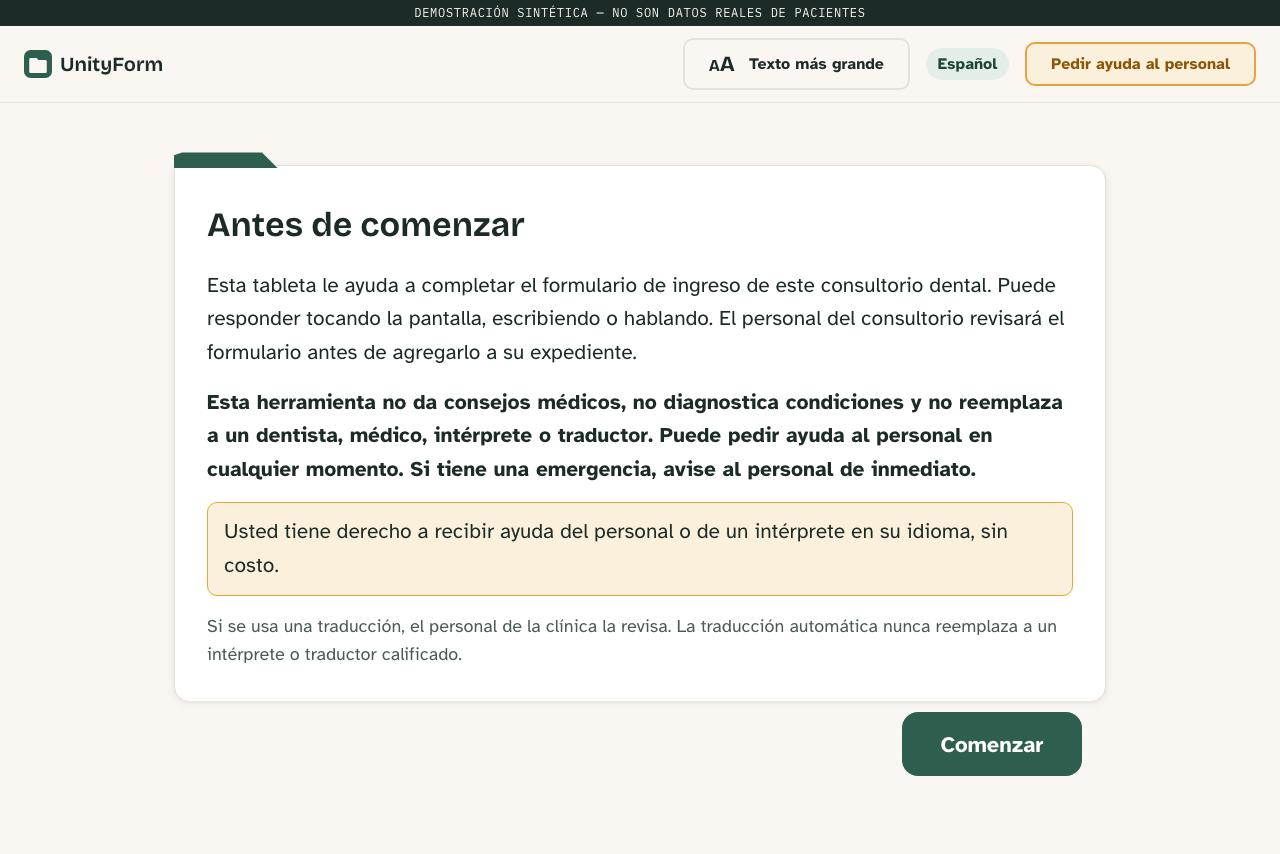
The real welcome screen in Spanish, running on practice data. -
They answer plain questions, with help on every one.
Questions appear one at a time, in the patient's language. Under each one sits a what-does-this-mean explanation in plain words, because insurance and medical-history questions are confusing in any language.
Patients tap choices or type. Before finishing, they see all their answers again, in their own language and in English, and can fix anything that looks wrong.
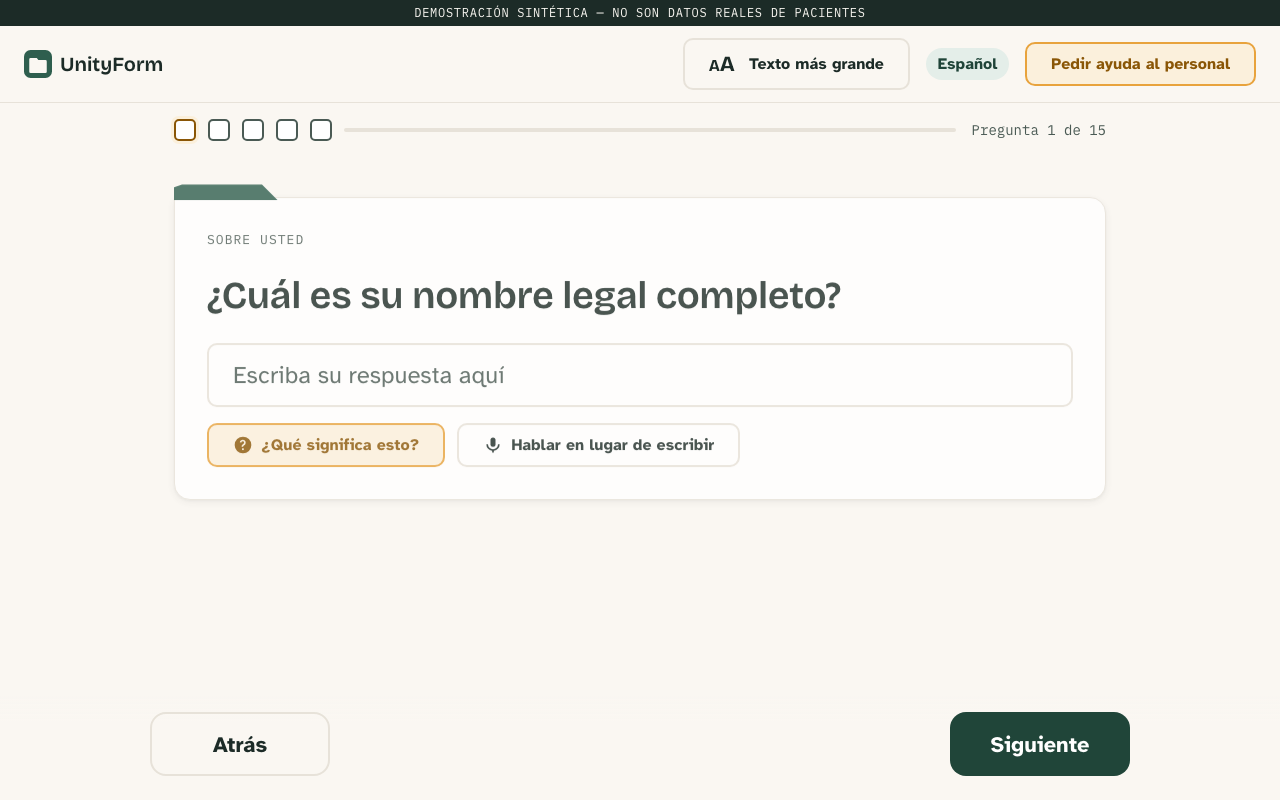
The first dental question in Spanish, help within reach. -
The front desk sees clean answers, instantly.
The moment a patient finishes, their check-in appears at the desk: typed, in order, with the patient's language and the English form side by side. No deciphering, no re-typing.
Staff can fix a detail before filing it, and every correction is recorded with who changed it and when, so the record stays trustworthy.
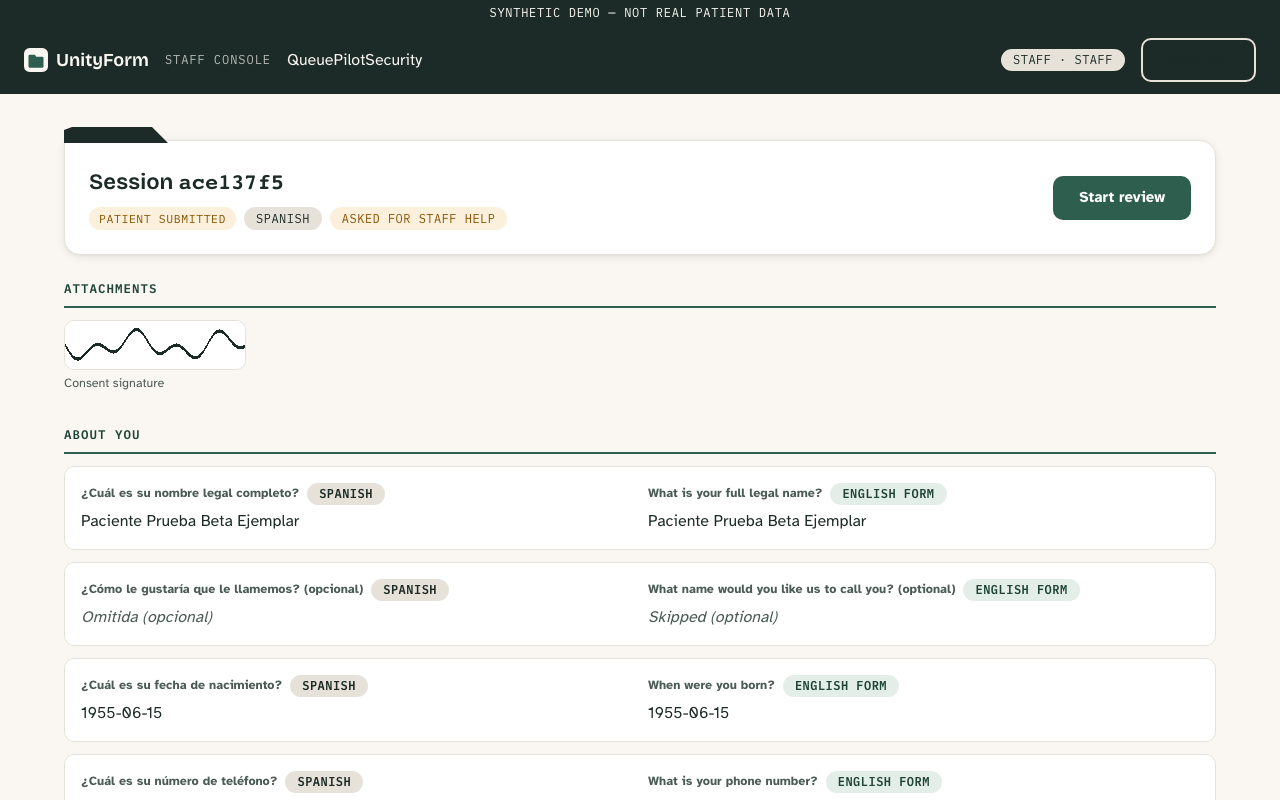
The front-desk view, practice answers in Spanish beside the English form. -
The finished form goes wherever your paperwork goes.
One reviewed check-in can come out of the system as:
- A filled-in PDF of your own form, ready to print or file, looking the way your clinic's paperwork has always looked.
- A copy in the patient's language, so they can keep what they actually read.
- A tidy digital file, for offices whose practice software can take one in.
- A complete packet, saved straight into a folder on the clinic computer that your existing filing routine already watches.
Exports become available when staff starts reviewing the submission. Final approval is a separate step.
-
Set up and test your clinic's workflow.
Setting up means placing one small computer in the building, uploading the PDF forms you already use, and pairing each tablet by typing a short code. Four starter forms are included if you want a running start: dental, eye clinic, general medical, and a HIPAA acknowledgment.
Then do a practice check-in with a made-up patient, watch it arrive at the desk, and check the printed result. Schedule encrypted backups and test a restore. Real patient use remains blocked until the clinic's readiness requirements are met.
See it with your own forms